Previewing your store
On the Publisher Dashboard, access your school's storefront under the Stores tab via the Settings button.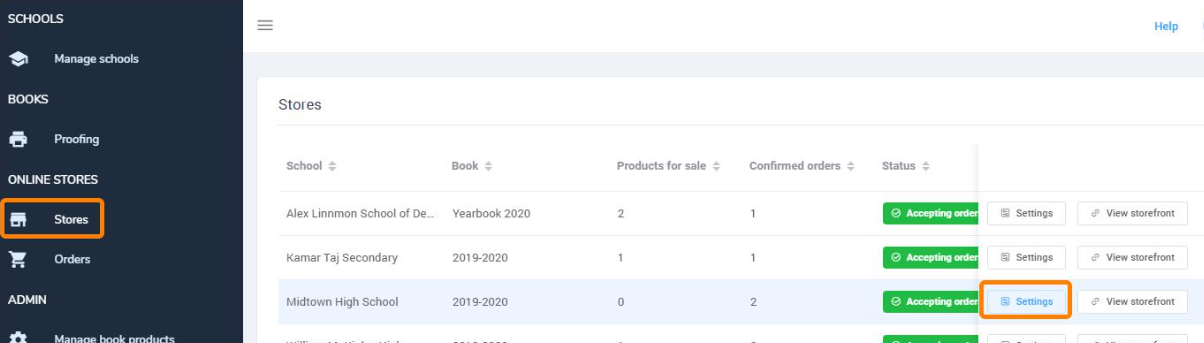
At the top of the page, click on the View Storefront link to launch the store in your browser. 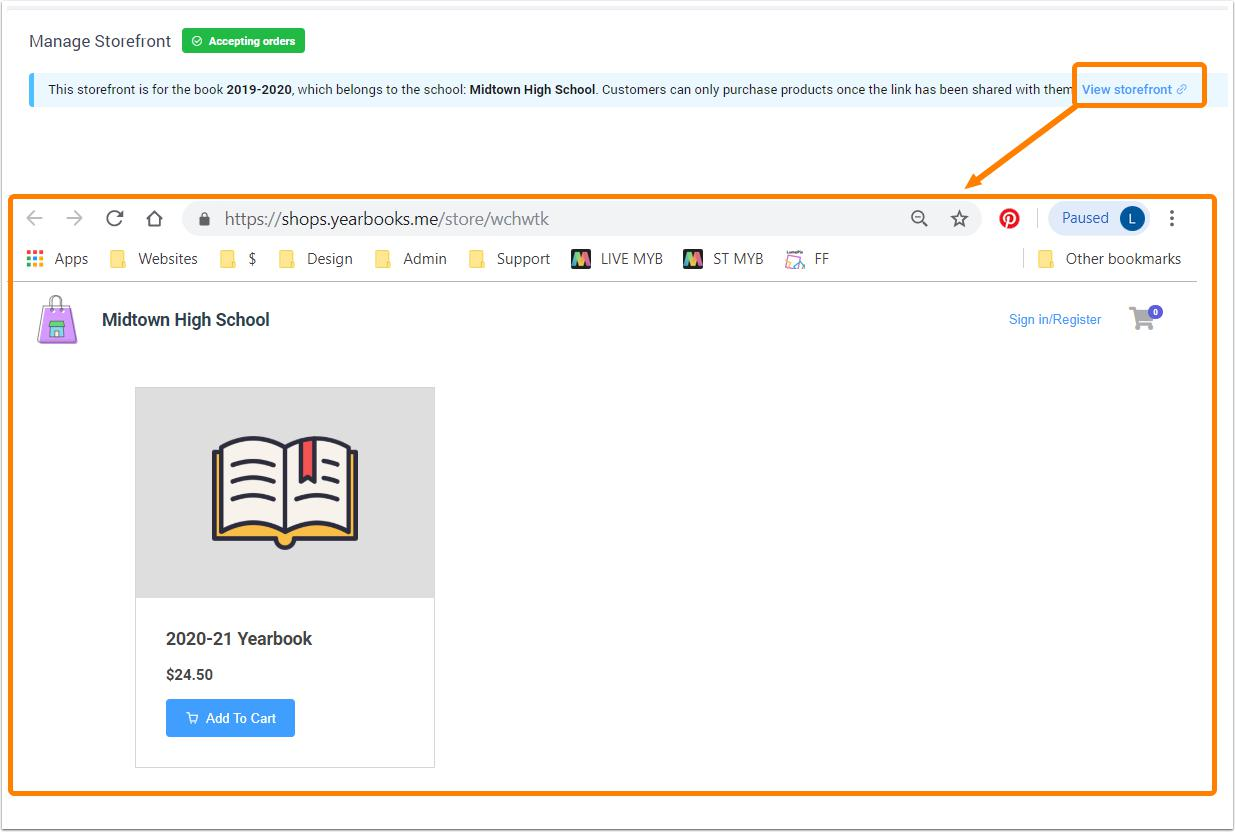
In Memento Yearbook, your editor(s)-in-chief may access the store site under their Storefront tab.
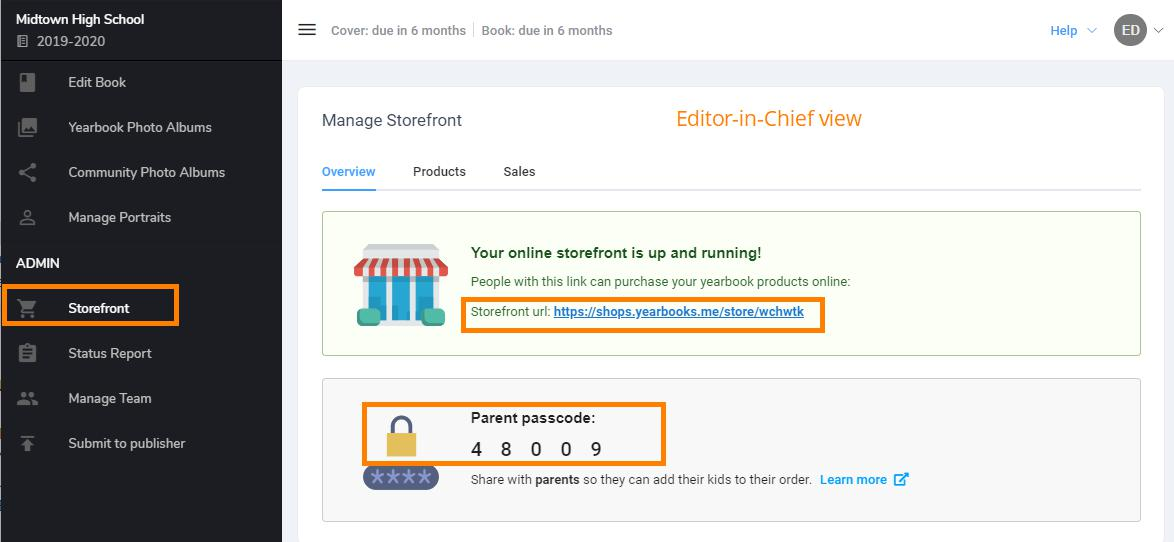
Copy the store site's URL and, if applicable, the parent passcode, to send to your school community.
What Customers See
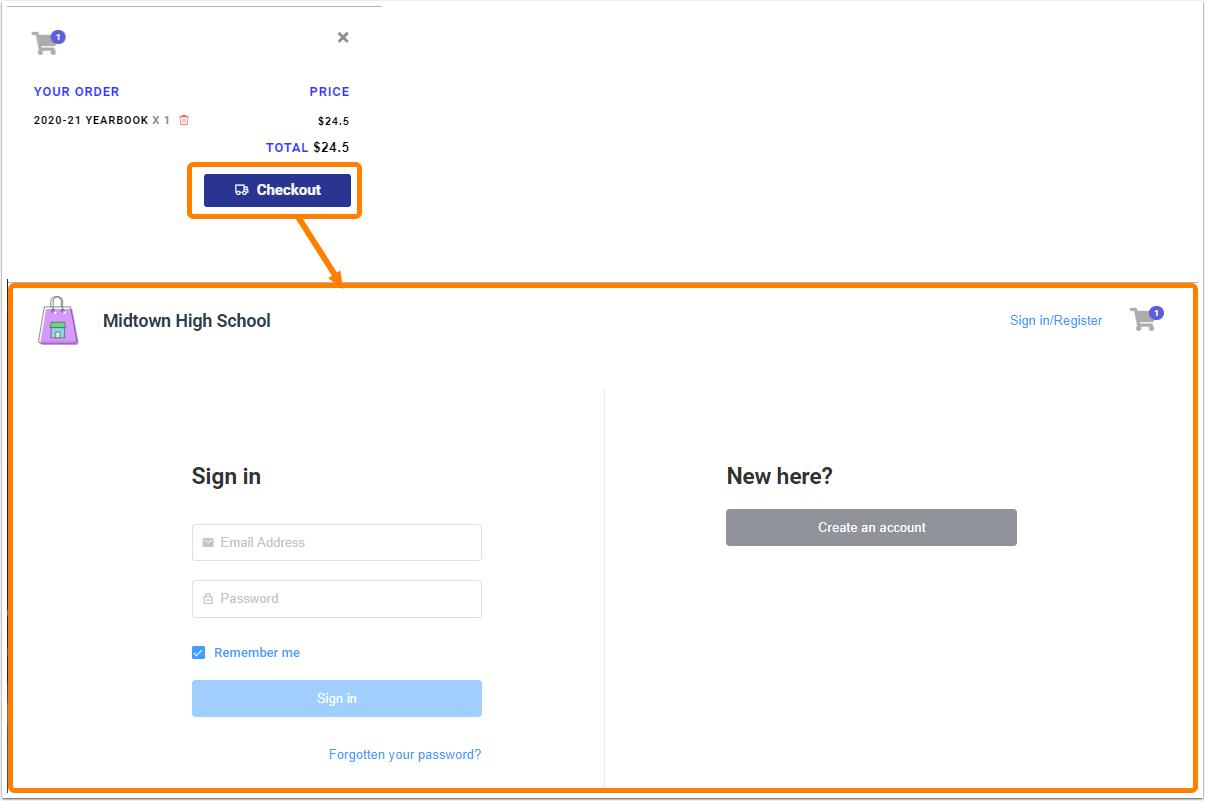
Your customers may access one or more yearbook products in their school's store. Products are added to cart. Click the cart to view its contents.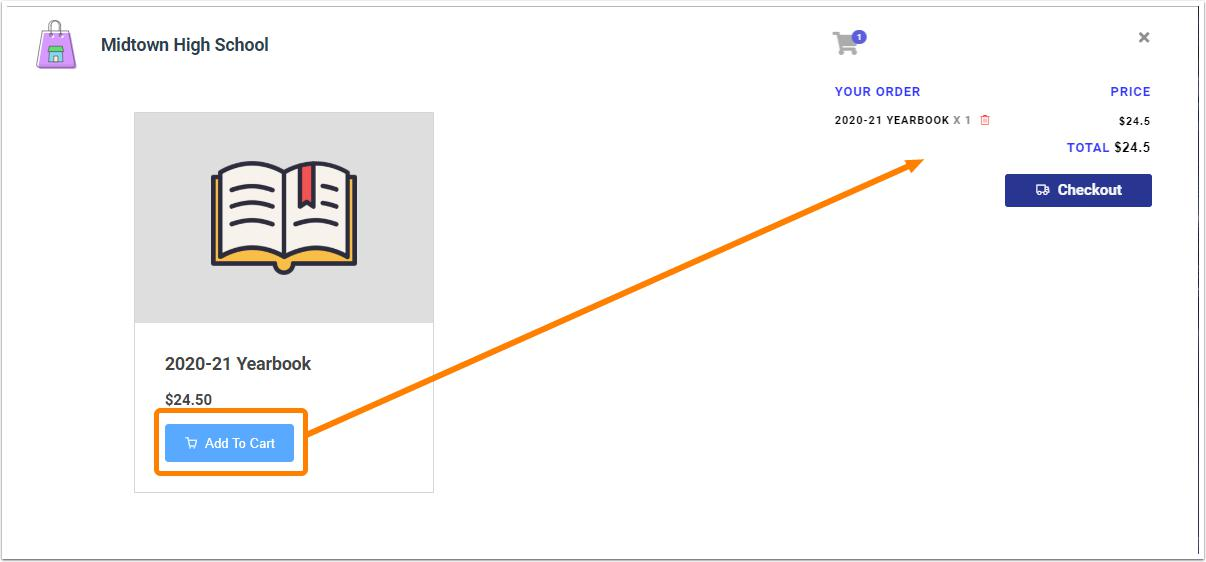
At checkout, parents may log in (returning customers) or create a login (new customers).
After login, the customer enters their billing info. If enabled, they may associate their order to their child's name using the parent passcode.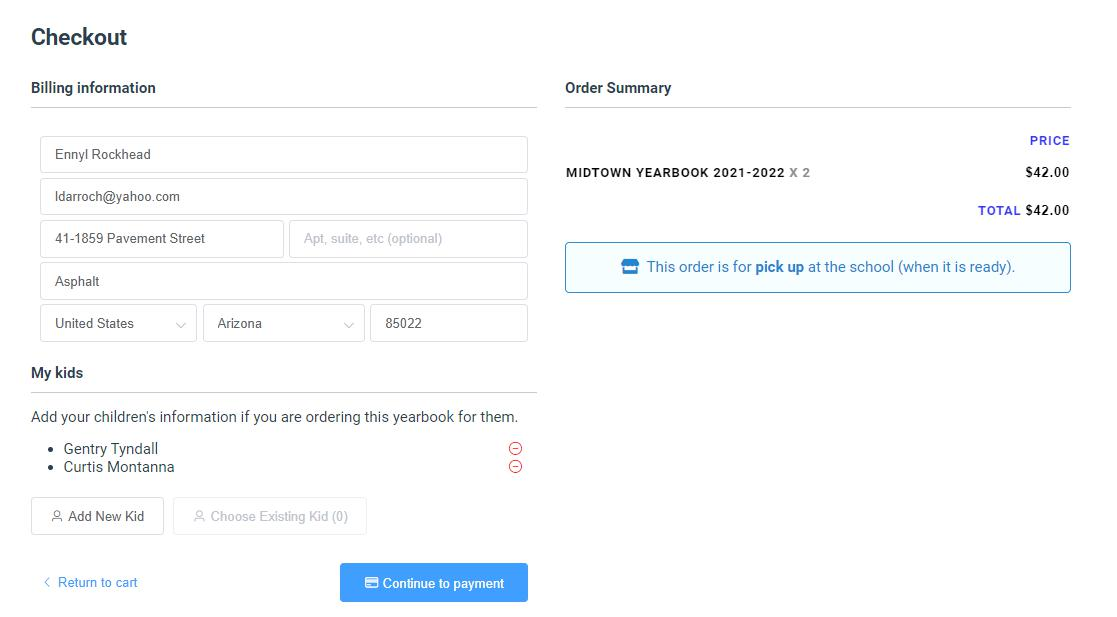
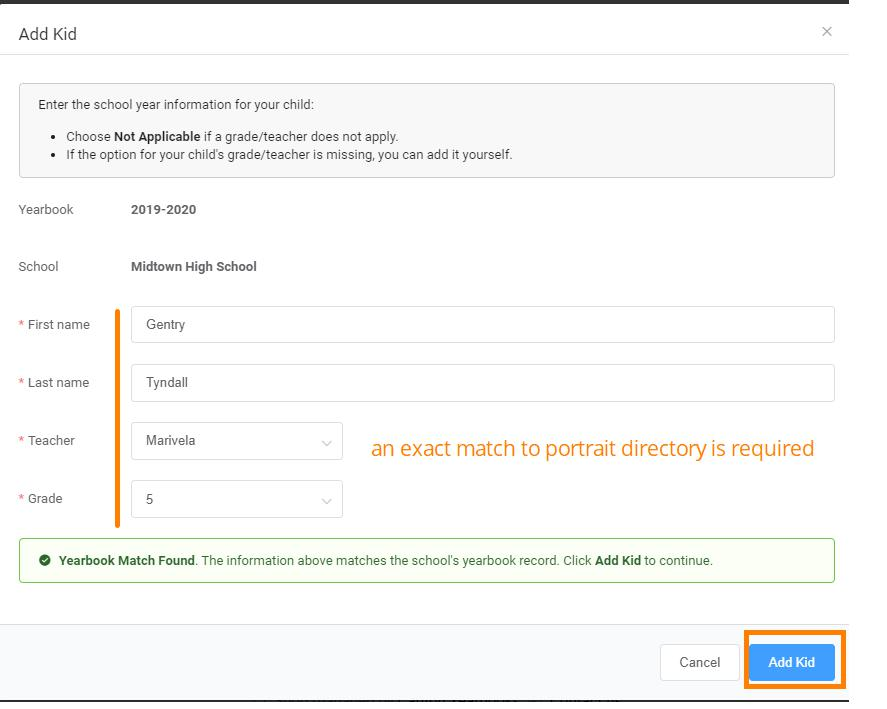
After entering the passcode, parents may add their children's name, teacher and grade so the order is registered to them. Note that the name must be entered exactly as it appears in the yearbook's portrait database, which is usually the same as how the child is registered at the school (no nickname or alternative spellings).
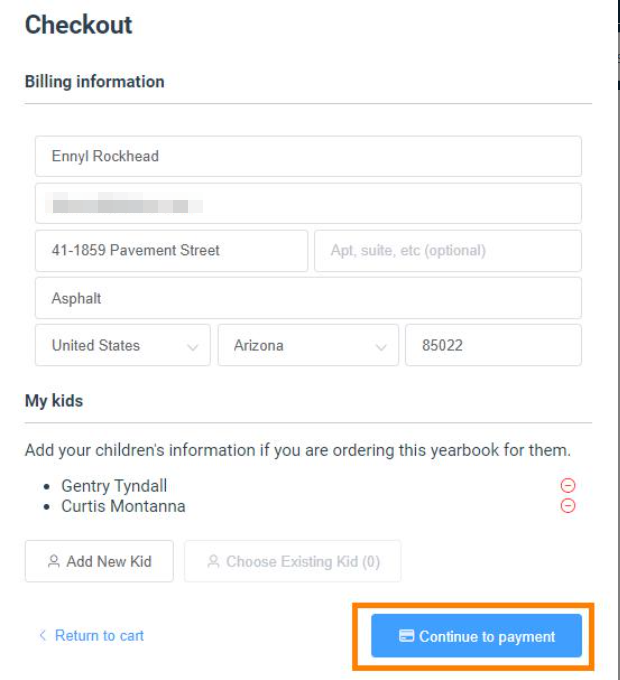
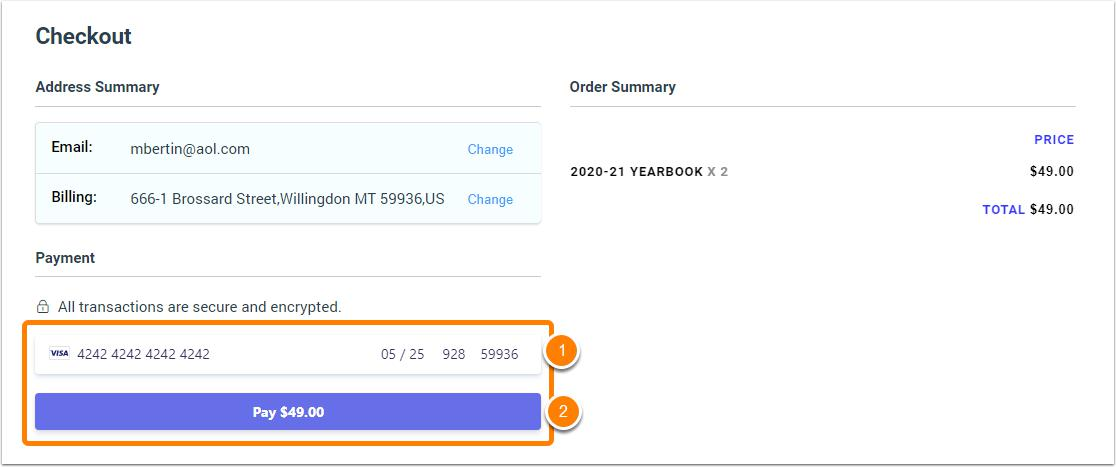
After clicking on continue to payment, the parent may add Visa or Mastercard information to complete their order.
 |  |
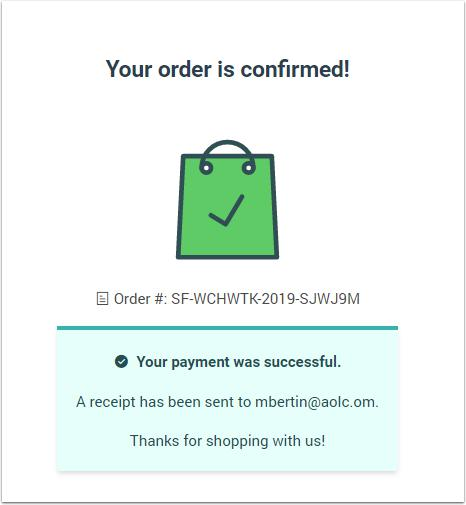
If payment is successful, they will receive a confirmation notification.
Was this article helpful?
That’s Great!
Thank you for your feedback
Sorry! We couldn't be helpful
Thank you for your feedback
Feedback sent
We appreciate your effort and will try to fix the article