Most stores offer yearbook presales, and base the order-to-print on the number of sales. However, some schools may want to order a flat number of books to print then sell of the inventory in their online store, or sell off surplus after the presale period has ended.
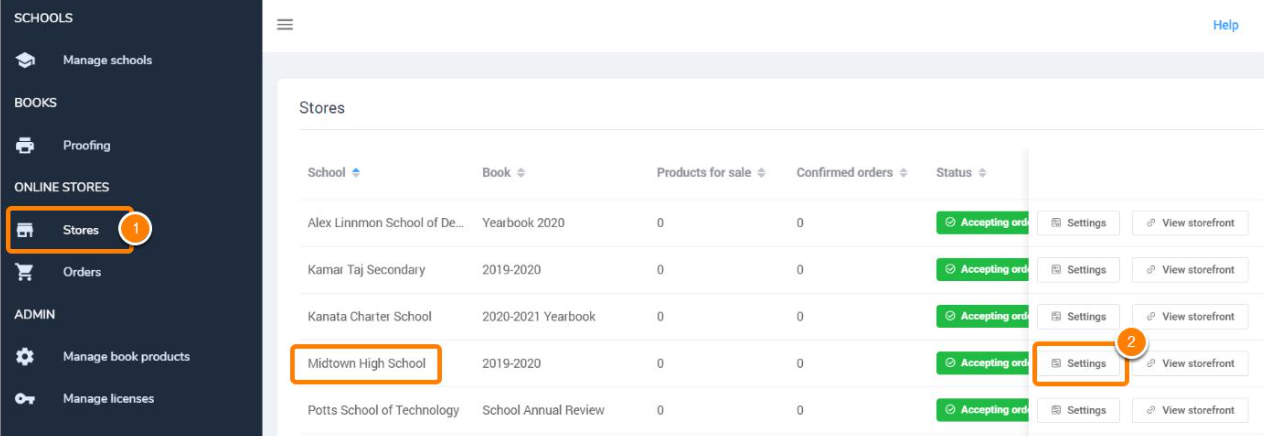
To sell off a set inventory count, click on the Stores tab, then on the Settings button next to the school of your choice.
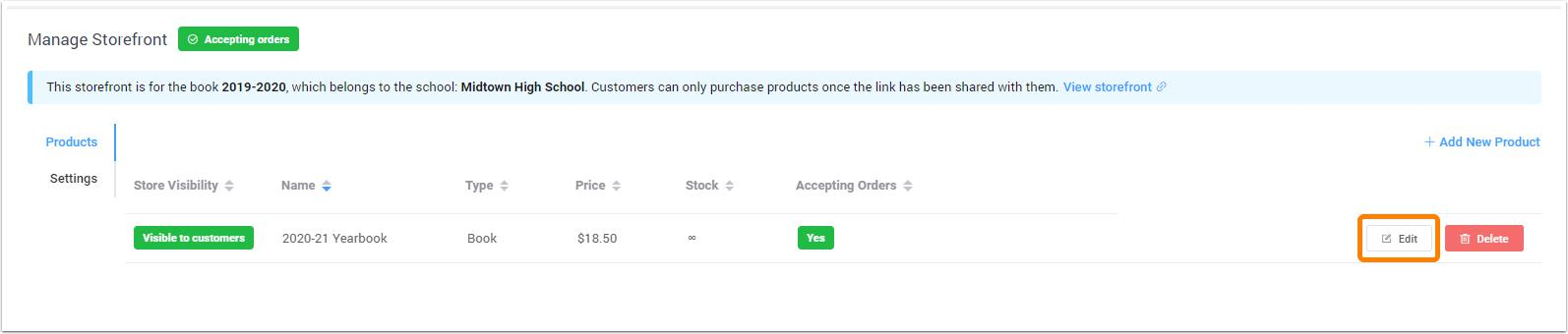
Edit an existing product, or create a new product, as required.
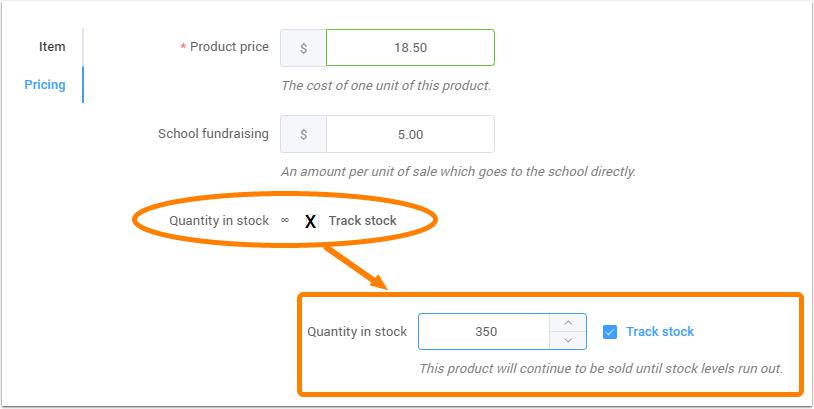
Under the product's Pricing tab, turn on the track stock feature. Add the total number of books/units available for sale. Be sure to save the changes once you have completed this setup.
The total inventory is displayed under the storefront's Stock column.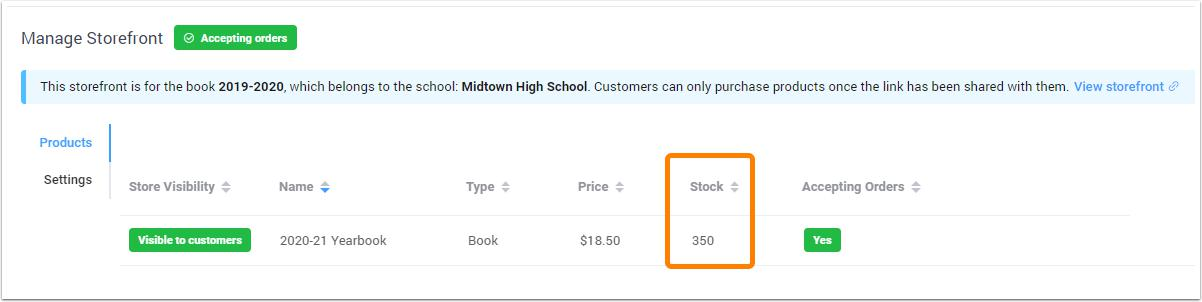
When sales are recorded, the available stock number changes. If no further stock is available, the item will no longer be available for purchase in the school's store.

Was this article helpful?
That’s Great!
Thank you for your feedback
Sorry! We couldn't be helpful
Thank you for your feedback
Feedback sent
We appreciate your effort and will try to fix the article