Create user logins for your staff to provide them with access to your Memento Yearbook Publisher dashboard. Create as many staff logins as required, with custom permissions.
Some staff may have all-access passes to Publisher Dashboard features; others (such as regional sales reps) may only be able to access selected schools and features -- the choice is yours!
To add a team member, click on Manage Team on the left-side menu, then choose Add New Team member in the top right corner.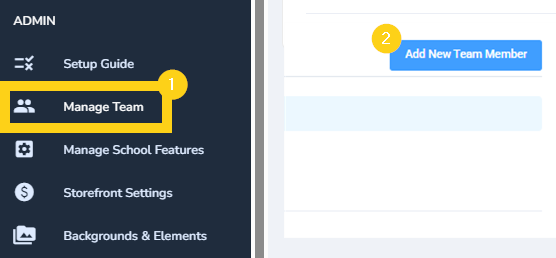
Add personal details for the new user. The notes field is optional.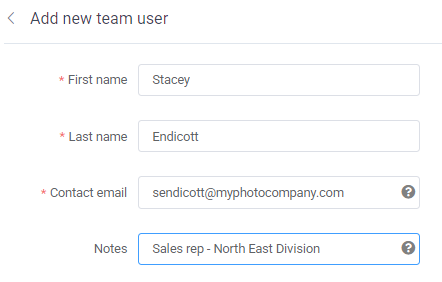
Choose if the user will be able to manage all schools (eg. general support/admin staff) or assigned schools (eg. regional sales rep).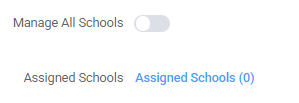
To manage all schools, turn the toggle on.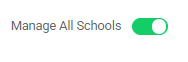
To assign schools, click on the blue link, select the schools to add to the user's profile then save the changes.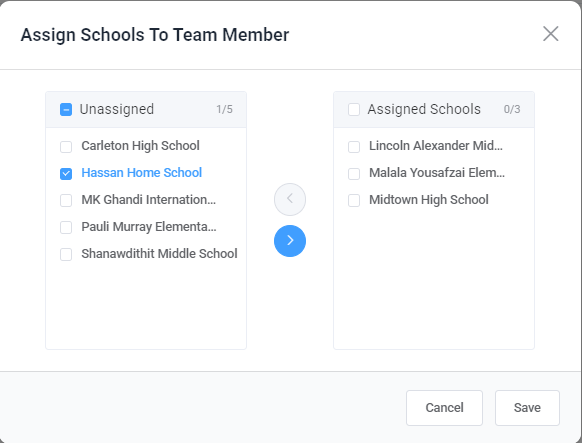
Under School permissions, choose how the user will be able to setup and manage school accounts.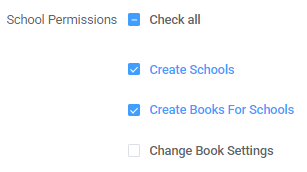
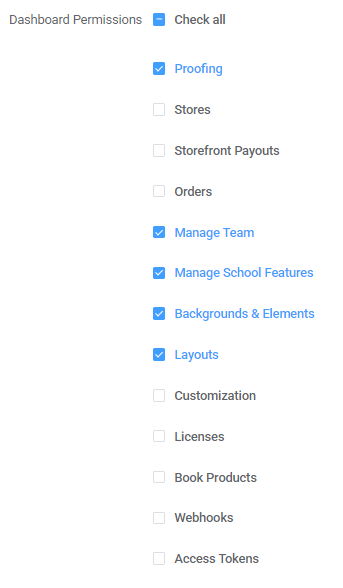
Under Dashboard permissions, select which options to apply to the user.
 When your selection is complete, click Add User at the bottom of the form.
Once added, a welcome email will be sent to the new user. The account status will update to indicate if the user has logged in from the link in that email, if the invitation is pending or if it bounced. You can edit the user's account and permissions, resend the invitation email, or remove the user from Dashboard access.

Was this article helpful?
That’s Great!
Thank you for your feedback
Sorry! We couldn't be helpful
Thank you for your feedback
Feedback sent
We appreciate your effort and will try to fix the article