To enable your school to begin working on their yearbook, you need to assign a book to them. Assigning a book will utilize one of your available licenses. If you don't have any licenses remaining, you'll need to purchase additional ones before assigning a yearbook using the form under the Manage Licenses tab.
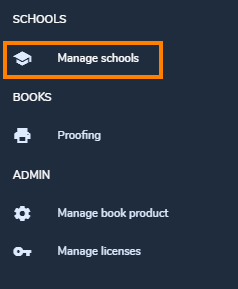
Step 1: Click on Manage Schools.
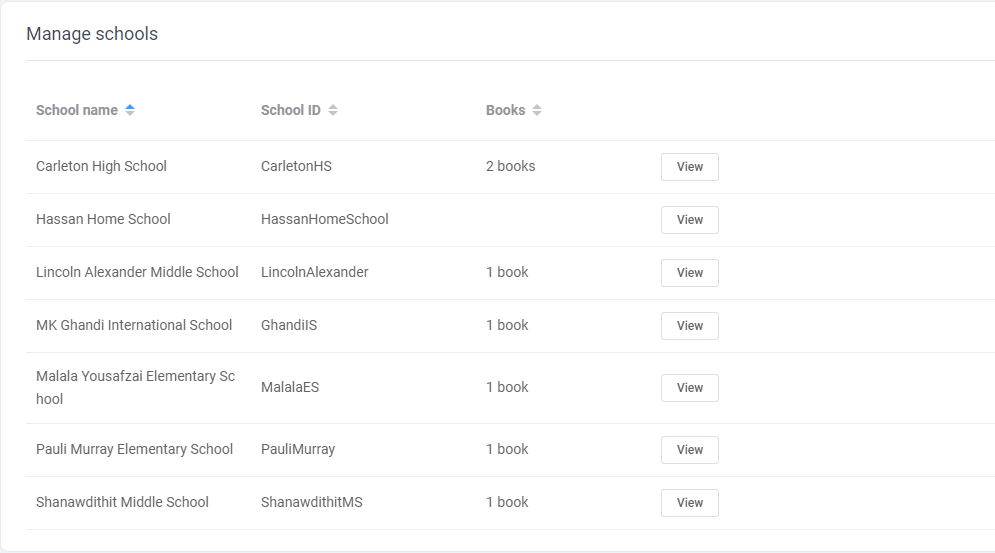
A list of all active schools including their School ID and the number of books assigned to each will be displayed. You can reorder the list alphabetically or by quantity using the up/down arrows.
Tip: If a school is no longer active, you can set it to inactive to view only the schools you are currently supporting, reactivating it later if necessary.
Step 2 - Click View next to the row of the selected school.

Step 3 - Toggle to the Books tab then click on Create new book.

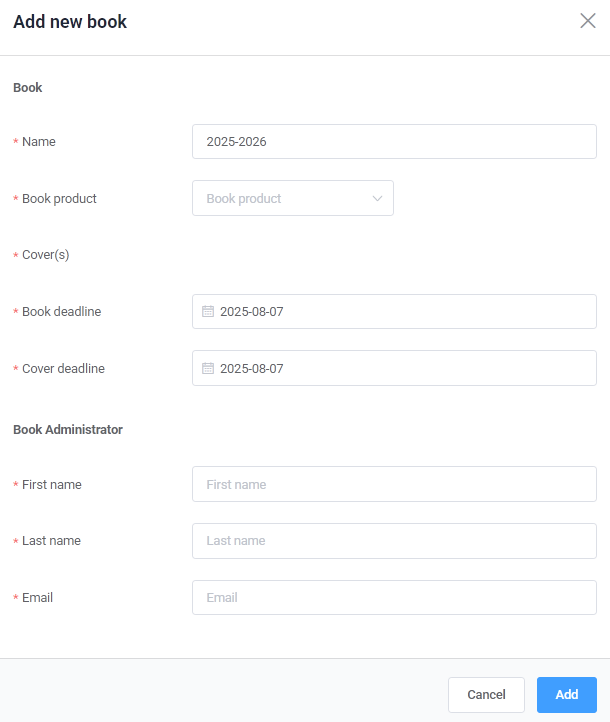
Step 4 - Complete the form to assign a license to the school.
Give a name to the project (year, type of publication)
Select the book product to apply to the project, then specific the cover type(s) to include.
Add the fixed page count, if desired, which will only allow your school to submit a project with that exact number of pages.
Set a deadline to submit the interior book pages and cover. These may be the same date if you do not need covers ahead of the rest of the book. Theses dates will be displayed in the book to remind your customer when their project is due.
Add the contact information for the primary adviser/editor-in-chief. Be sure the email address is correct to ensure important access/setup information will be received.
Once the book has been added, a book will be recorded under the school's book option. Note that the book will be marked as Unregistered until the administrator logs into the account, and that the email invitation will be marked as queued.

The invitation email will be sent to the contact person specified in the book registration form. The email will provide them with the information required to login to their book.
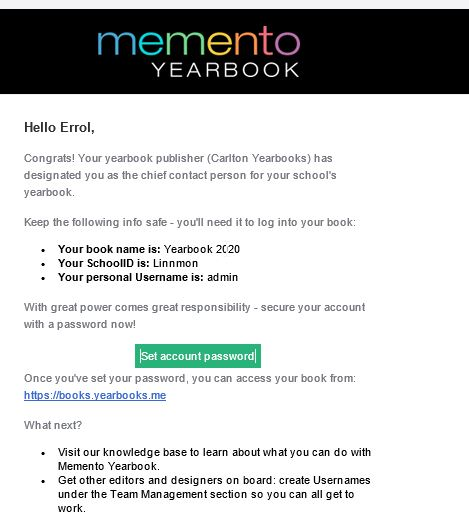
Until the client sets the account password, the book will remain as unregistered - this status will change one the administrator logs into the book following the instructions sent at the time the book was created. If your client did not receive an invitation to log into the book, you can re-send the invitation.
Was this article helpful?
That’s Great!
Thank you for your feedback
Sorry! We couldn't be helpful
Thank you for your feedback
Feedback sent
We appreciate your effort and will try to fix the article