To make changes to books assigned to a school, first click on Manage schools then click on View next to the school whose book settings need to be updated.
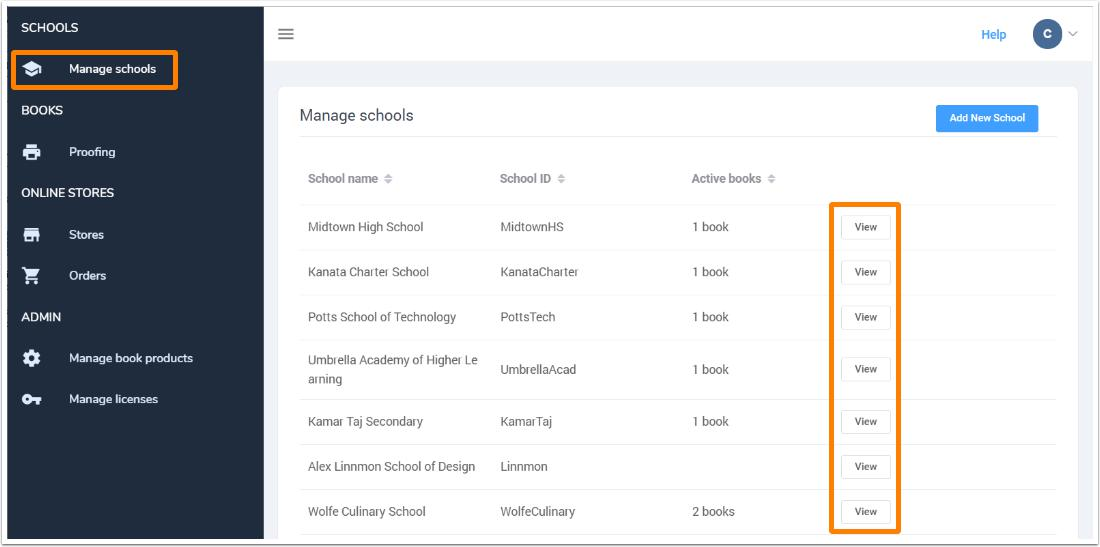
All active (unexpired) books will be listed for the school. To update the information for a book, click Settings.

Most information may be modified after the book has been set up: update the product name, the book product and cover type(s), the fixed page count, and the deadlines. You can update the administrator if they have not registered yet. Admin login must be changed directly in the book under the Manage Team option in this case.
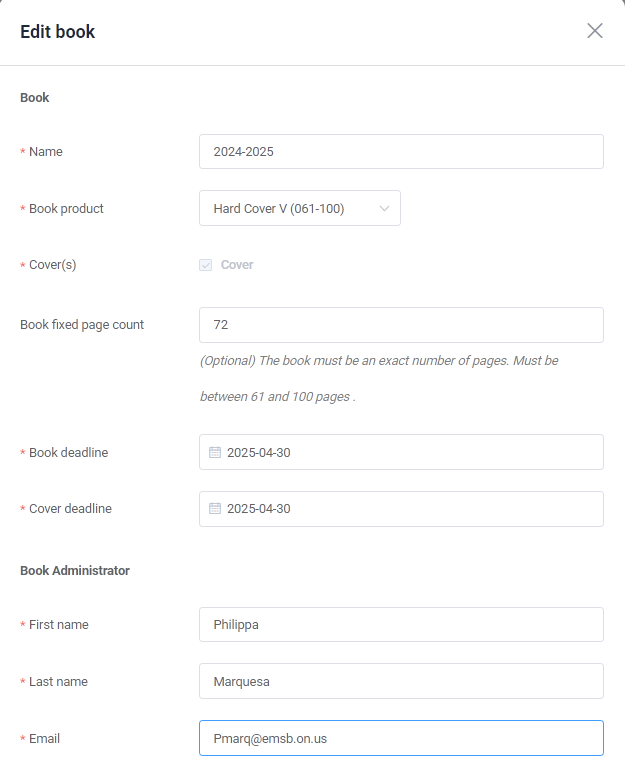
CRITICAL: Changing the cover options may result in the school losing their current cover design. If you are changing between an old single-cover book product type and a newer multi-cover type, be sure to copy the cover design to an interior page prior to switching the product. Once the cover has been change and the design deleted, it cannot be undone.
Was this article helpful?
That’s Great!
Thank you for your feedback
Sorry! We couldn't be helpful
Thank you for your feedback
Feedback sent
We appreciate your effort and will try to fix the article