Yearbooks are first proofed and reviewed by the school. You as the publisher may access their book at any time, but only the school may run the preliminary review pass to get the book ready to submit for printing. Full details of the school's proofing procedures may be found in the Memento Yearbook general knowledge base.
Proofing notifications
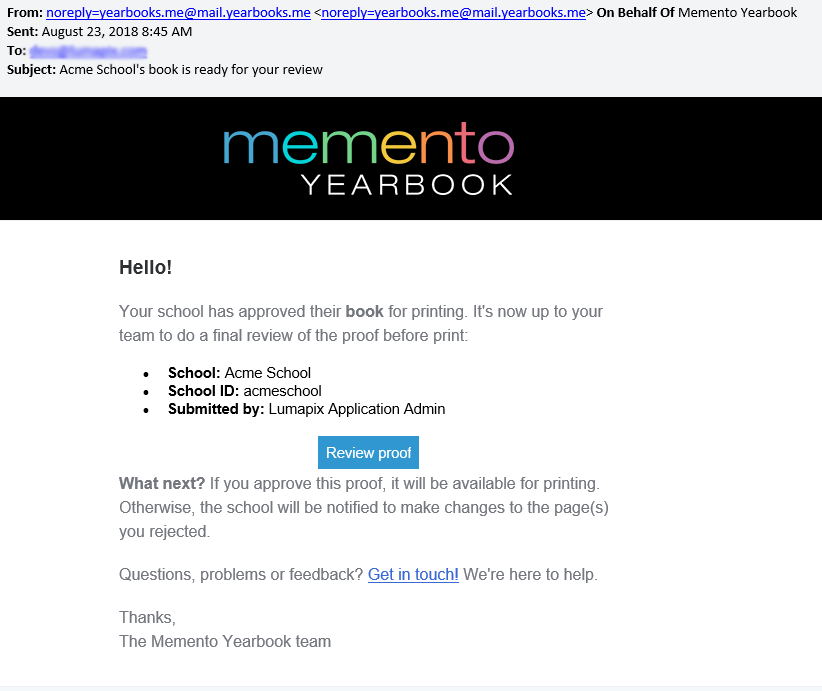
You will receive an email notification when your school has submitted their book to you. Click on the link in this email to review the proof.
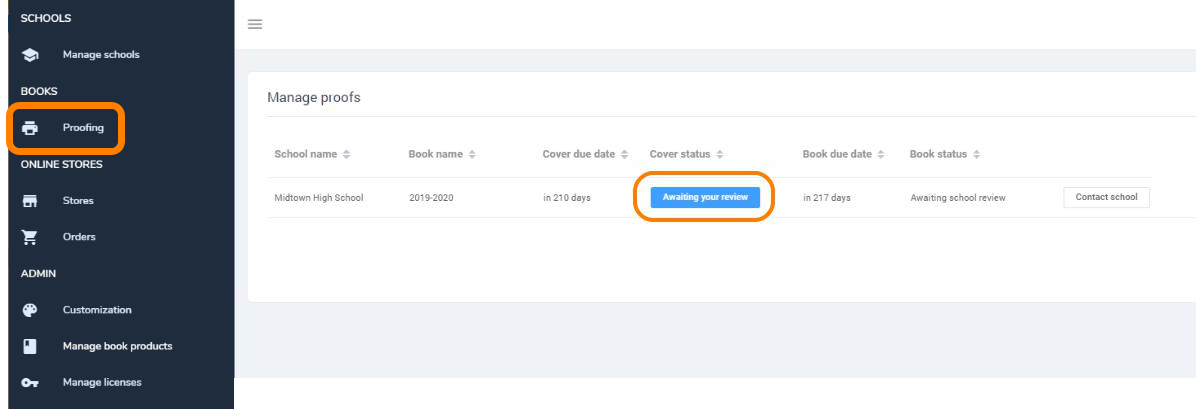
Your publisher dashboard includes a Proofing tab that shows a list of projects (covers and books) that are ready for your review. Click on the Awaiting your review button to launch a book or a cover in the online proofing editor.
Note Your school is locked out of their book after it has been submitted. Be sure to review books as soon as possible so the yearbook can move forward to printing or be unlocked for editing.
Reviewing the client's project
The online proofing editor enables to you view each page of your client's project in detail. Safe margins, bleeds and spine/gutter lines are displayed so you can evaluate the placement of text and photos on the page. These lines do not appear on the final pdfs that are sent to print.
Covers appear as a spread.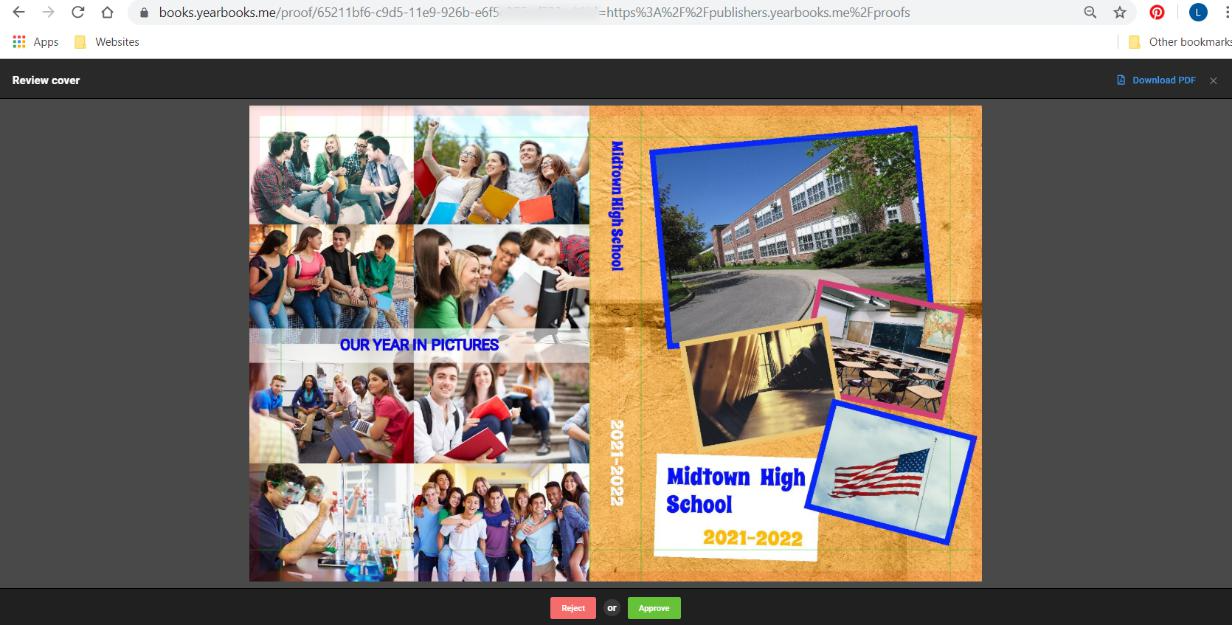 | Interior pages are shown as a sequence of left and right side pages. Navigate to the next page using the side arrows.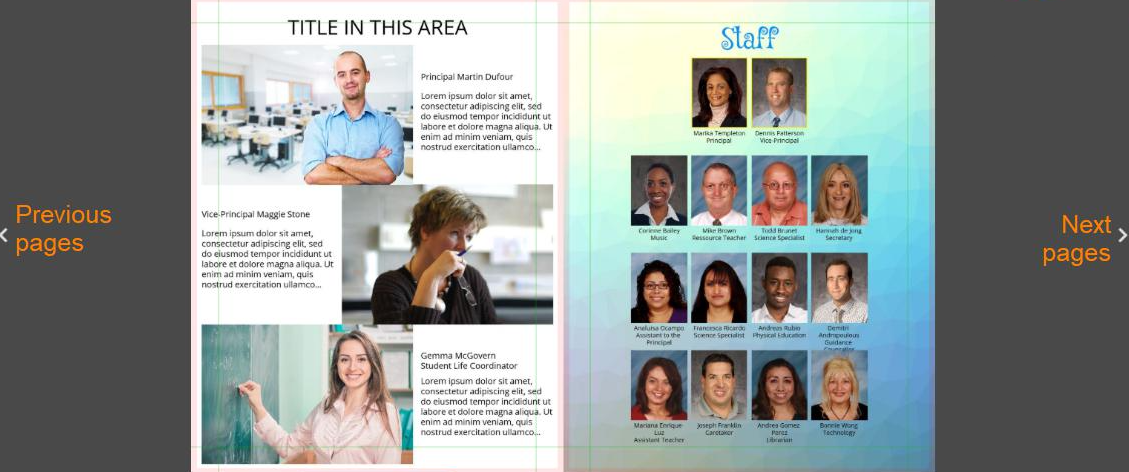 |
At the top of the page, the status of the review completion is shown, along with a download button to obtain a preview pdf of the book. Note this pdf is not suited for printing.
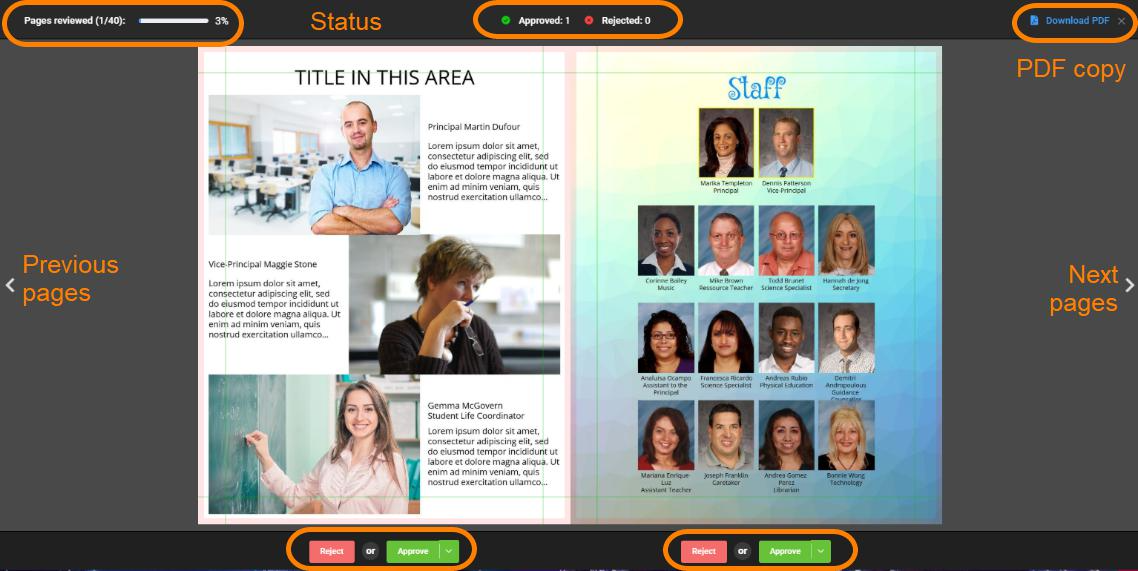
A set of reject and approve buttons appear under each page.
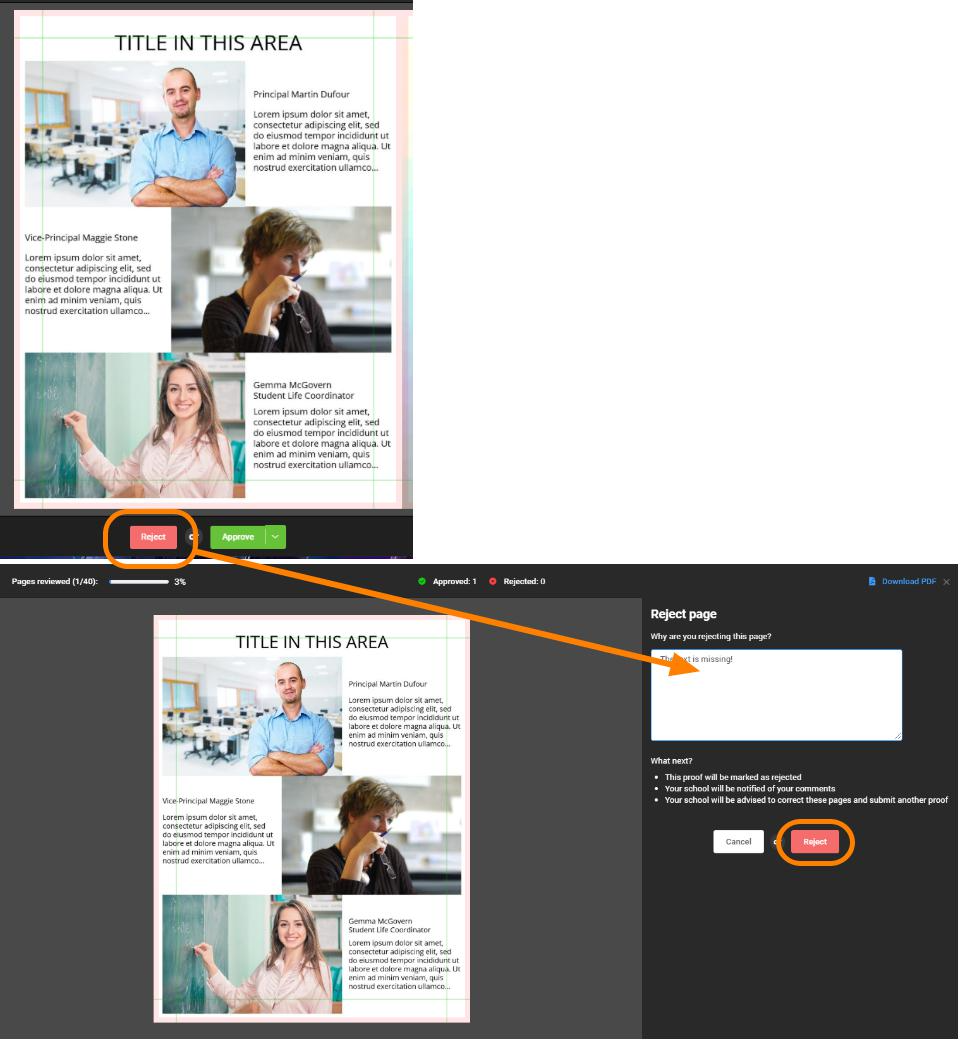
If the page needs revision click Reject. You'll be prompted to add comments explaining what needs to change on the page. After entering your comments, click on Reject again.
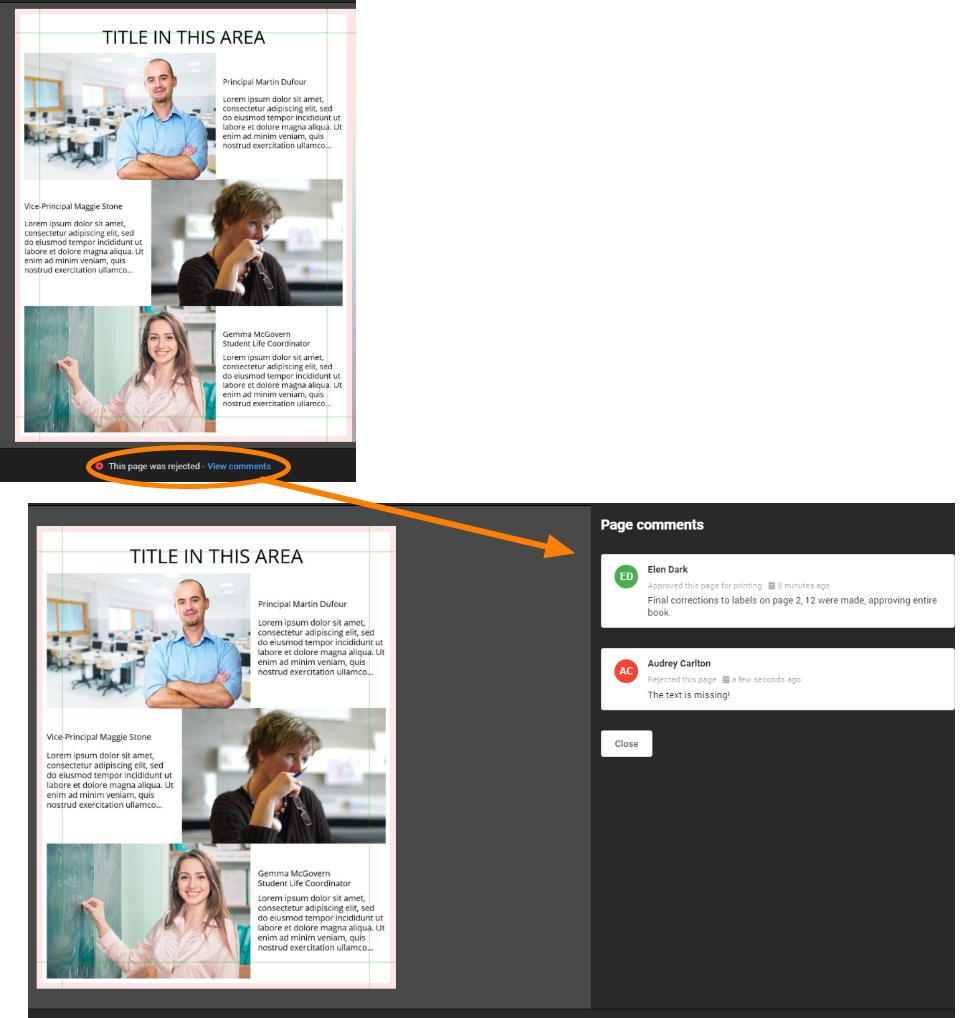
Both you and your client may review the comment history for the page in the proofing editor. Click on View comments below a rejected page to see its history.
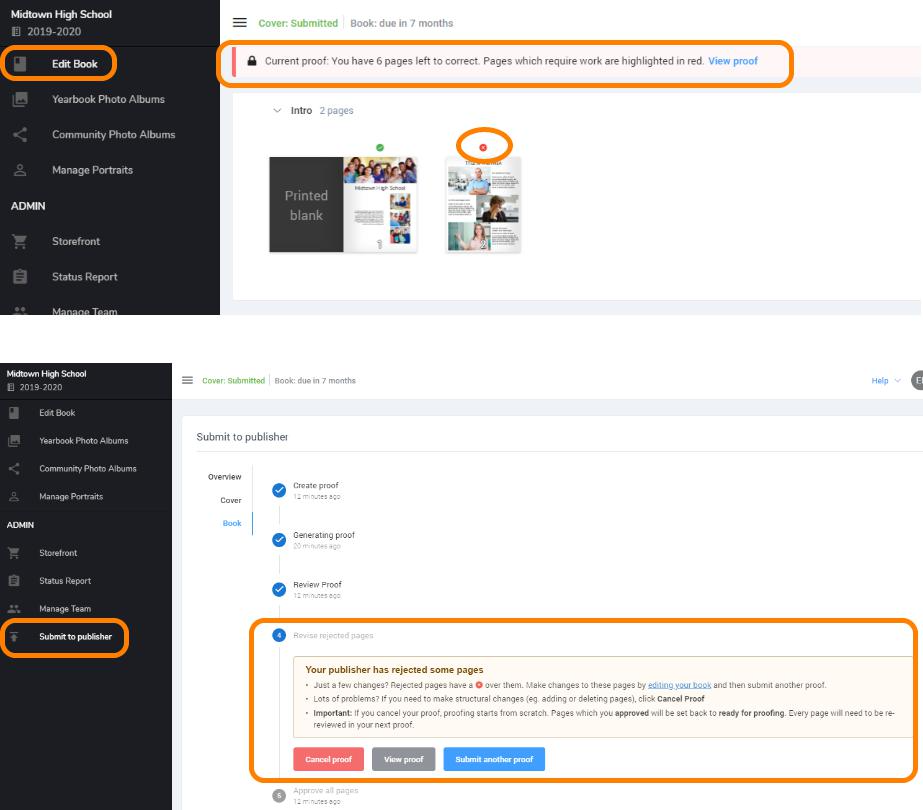
The school will also see that the page has been marked as rejected in their book manager, prompting them to review the page and make corrections.
Under Edit book, pages will be highlighted that need work. Under Submit to publisher, a notification that their proof was rejected by the publisher. Page comments will appear when they access rejected pages or look at the book in proofing. They will need to resubmit the cover or book through proofing until you have approved all pages.
Approving a cover or a book (individual pages)
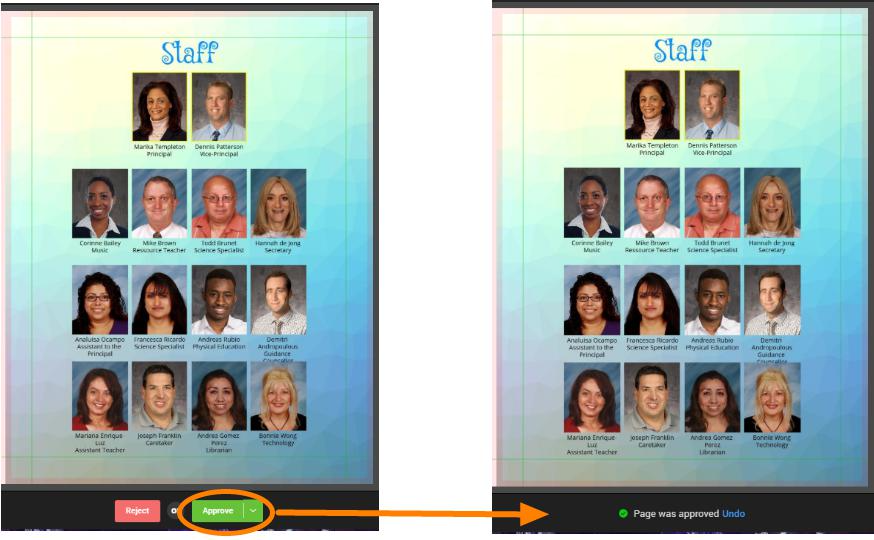
Click on Approve to mark a page as ready for printing. The page's status will be updated.
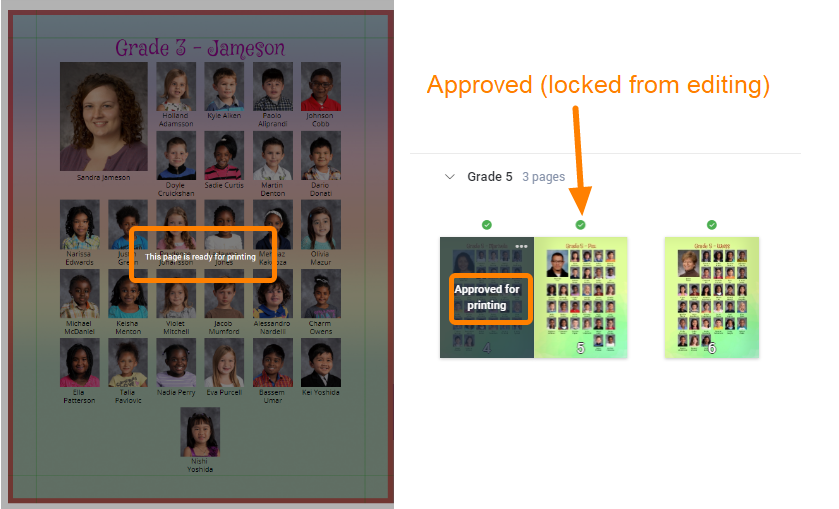
The school will see their page as locked from editing - both in the Editor and in the book manager. This prevents them from working on pages that you have set as ready to print.
After all the pages in the book have been viewed, mark the review as complete.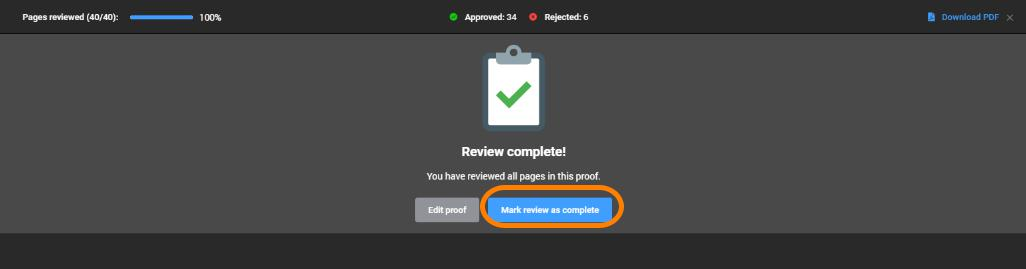
Bulk approving a book
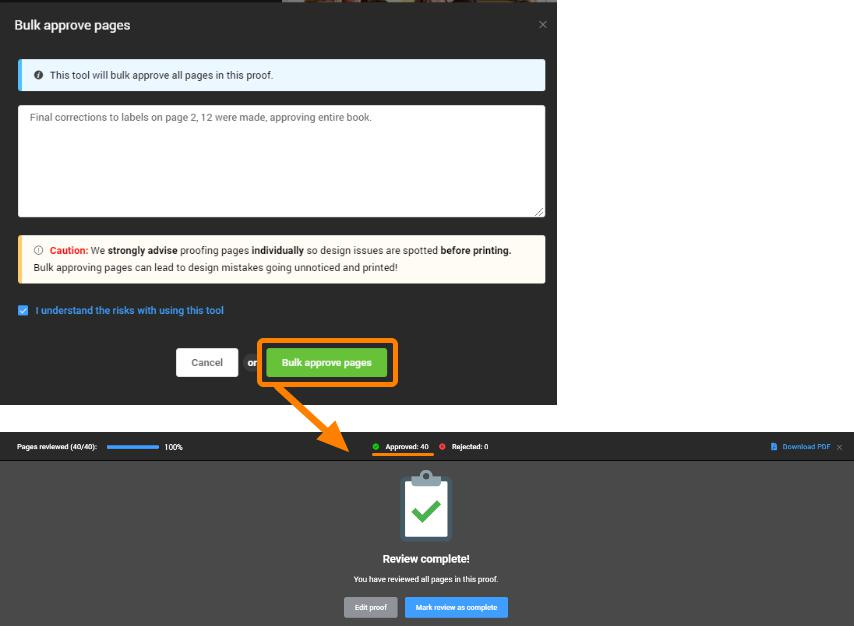
If the school has just corrected a few last issues with their book and you are confident that every page does not need to be reviewed again, you may bulk approve all pages in a single click. Be very careful using this option.
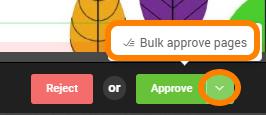
Bulk approving all pages must be confirmed as the entire book is marked as ready to be printed. The checkbox indicating that you understand the risks of using this feature must be turned on to proceed. It may take a moment to approve all the pages, but when it is complete, your review status will change.
Rejecting the whole book
If there are too many changes to proceed with a page-by-page review of the book and you just want to reject the entire proof, bulk approve all pages as illustrated above, then cancel the entire proof back in the publisher dashboard, as illustrated below.
Completing your review
When you have finished reviewing the cover or book, mark the review as complete.
If pages have been marked as rejected, the school will need to fix their work and resubmit for another review.
If you have approved all pages of the book and/or the cover, congratulations, you are ready to print!
Under the publisher dashboard's Proofing area, you'll see the status of the project update. In this example, the cover has been approved to print, but the book has one or more rejected pages.

Approved projects may be downloaded as zip file containing a ready-to-print pdf. Learn more about receiving finalized files.
Should you or the school change your mind about the status of the book, you may cancel the proofing approval. Enter a comment explaining why the approval was cancelled, then click Cancel Proof. Your client will be able to work on the book again, then resubmit it through proofing.
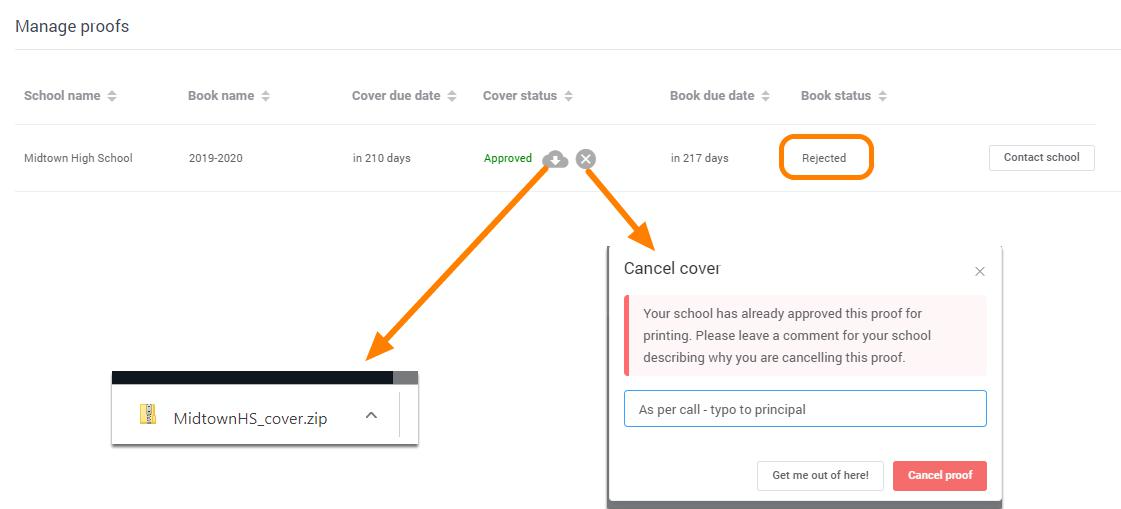
If you have already downloaded the PDF, both options to download again or to cancel remains.
Contacting your client
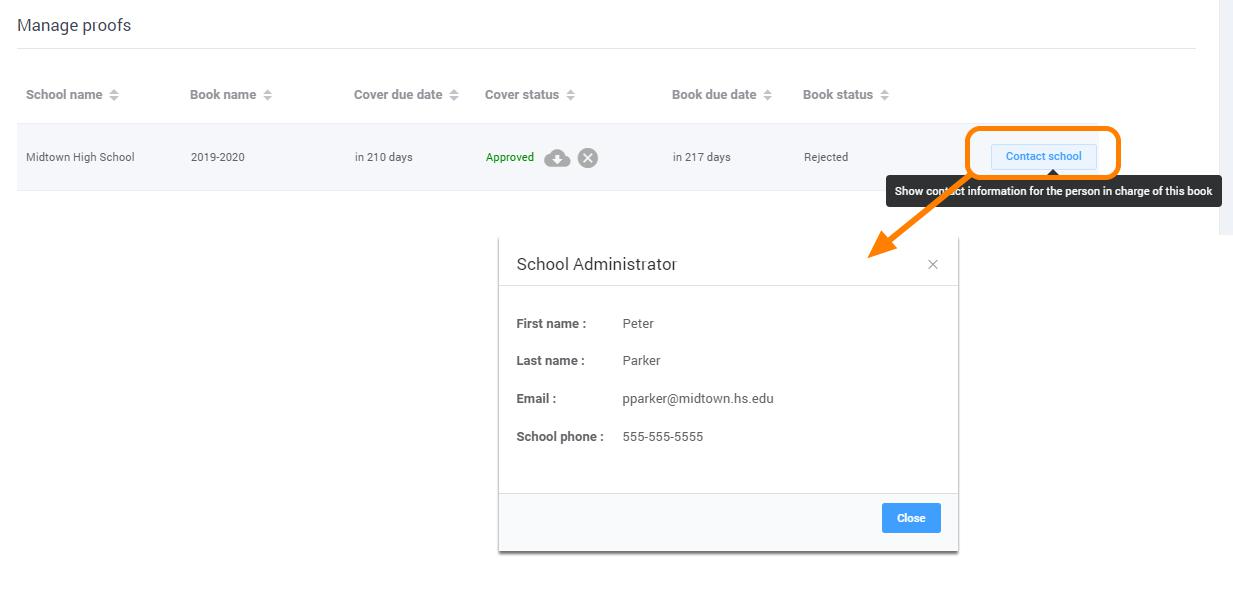
Quick access to your client's contact information is available directly in the Proofing tab. You may contact them to let them know that they should either check in on their book to make requested changes, or that it is ready for printing.
Was this article helpful?
That’s Great!
Thank you for your feedback
Sorry! We couldn't be helpful
Thank you for your feedback
Feedback sent
We appreciate your effort and will try to fix the article