Your customers will receive automated emails when certain actions are performed. These include but are not limited to welcome emails for account setup, password resets and proofing notifications.
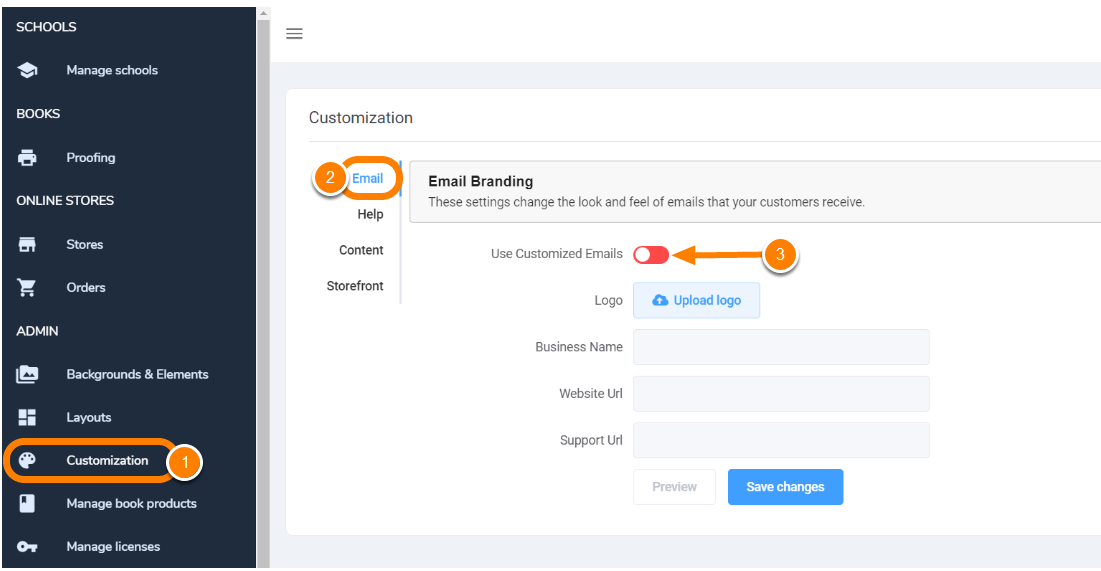
To customize emails sent to your client, click on the Customization option in the left-side menu. Choose the Email tab then turn on the Use Customized Emails toggle.
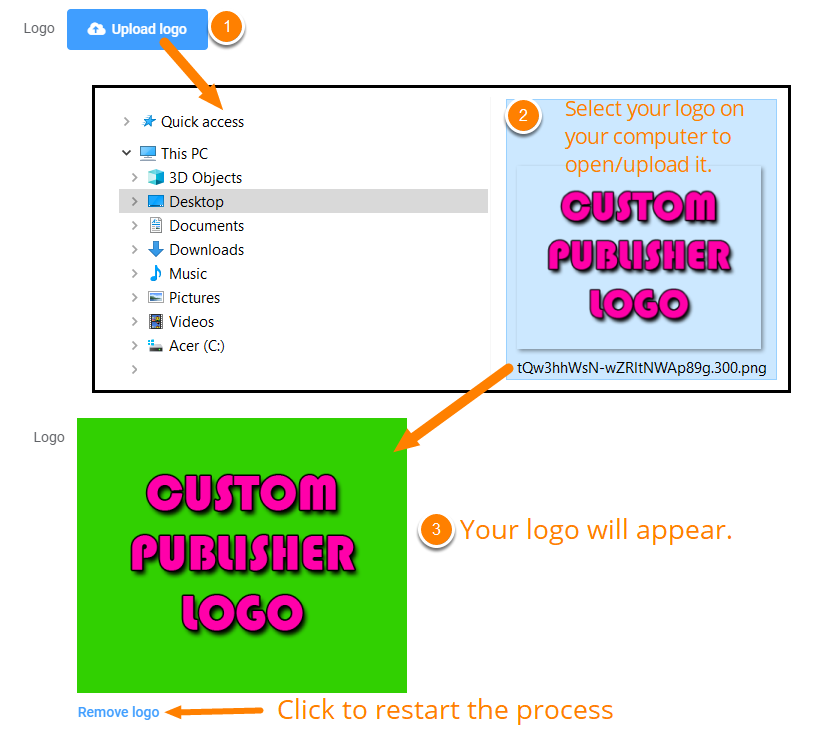
You may choose to customize the email with your own logo. Upload a png (ideally extracted to a transparent background) to add your company logo to emails sent to your client.
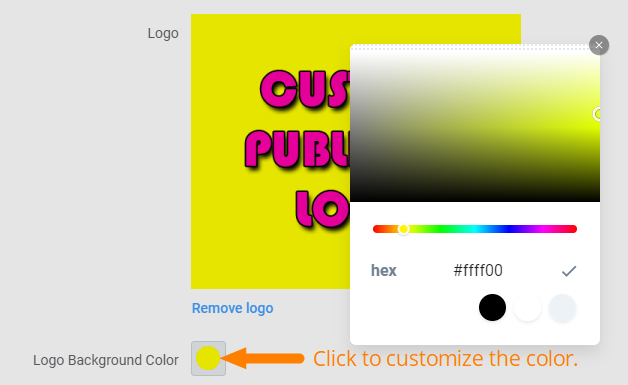
Customize the color of your logo's background using the color chip. This color will appear behind png logos with transparency.
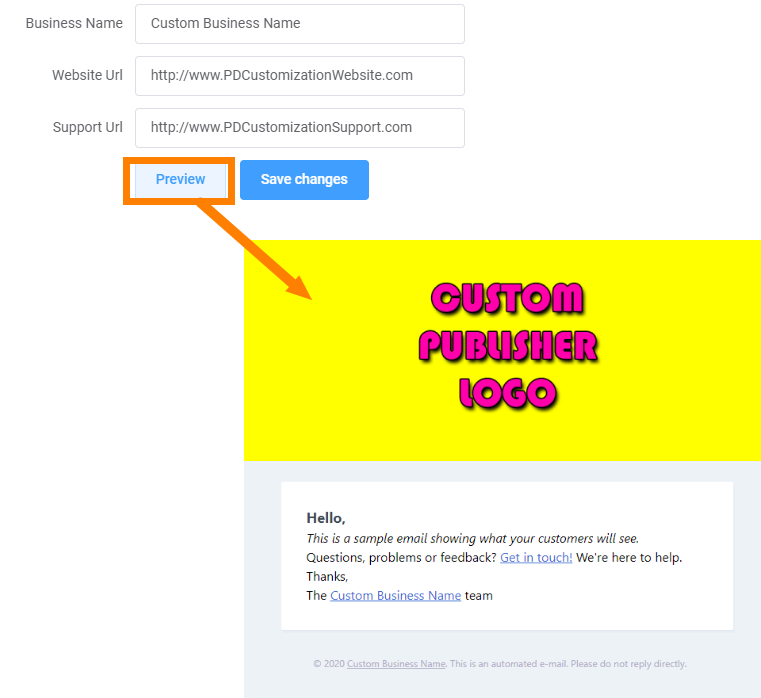
Add or change your company name, your website address and your support website. This information will be included in all emails sent to your customers. If no custom information is added, the information will return to default settings.
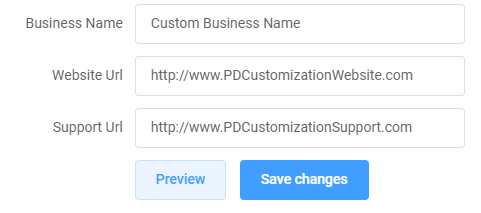
Click Preview to test your email customization. A new web tab will launch, showing you a preview of the customization. Ensure your links work, and verify your color and logo choices.
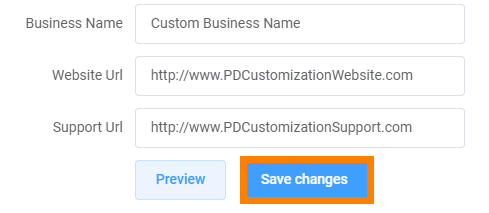
Click Save Changes to apply your customization. All emails sent out to your clients will now display your customization from this time onward.
Was this article helpful?
That’s Great!
Thank you for your feedback
Sorry! We couldn't be helpful
Thank you for your feedback
Feedback sent
We appreciate your effort and will try to fix the article