To customize the Memento app and your customer's book covers, go to the Customization option in the left-size menu, then choose Logos.
Application Logo
Customize the application logo to include your branding on your customers' login page, navigation side bar and the overview page's Support area.
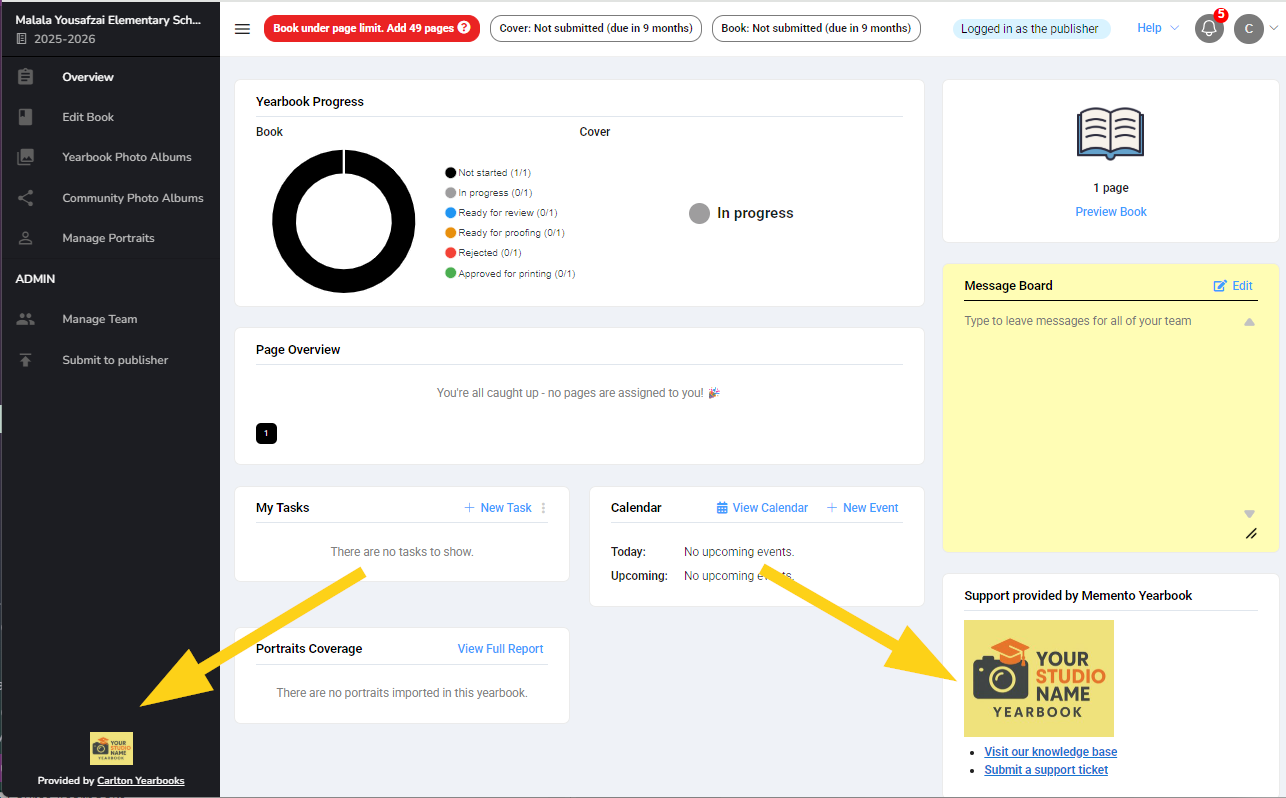
Your logo should be at least 300 pixels wide, either a png or jpg format - simply upload it, and your customers will see the logo the next time they access the software.
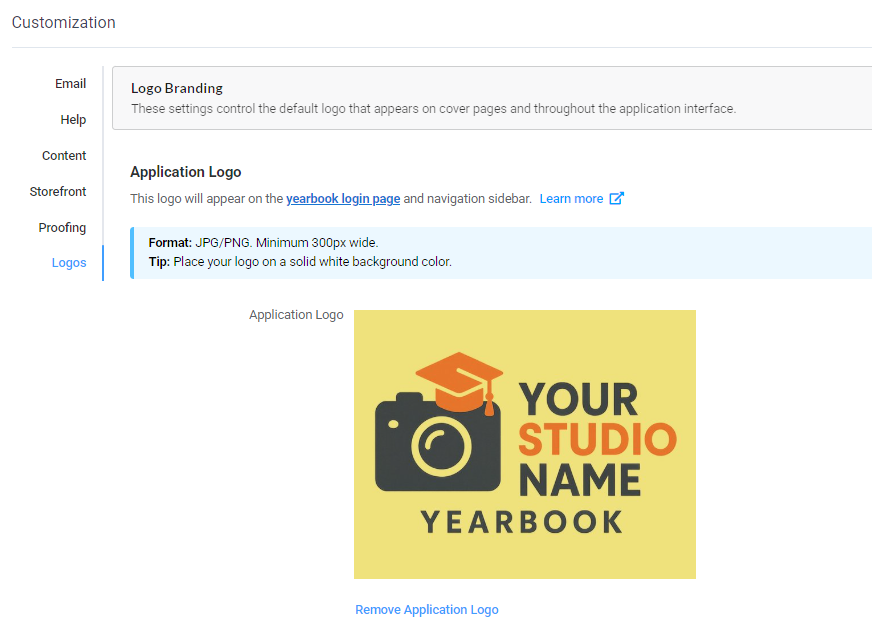
Back Cover Logo
Your logo may be positioned on the back covers of all your customers books, in your choice of size and position. When the product is applied to a book, the logo will appear on the back cover at the indicated size and position. Note that yearbook designers cannot cover the logo with images, shapes or text, nor delete or move the logo.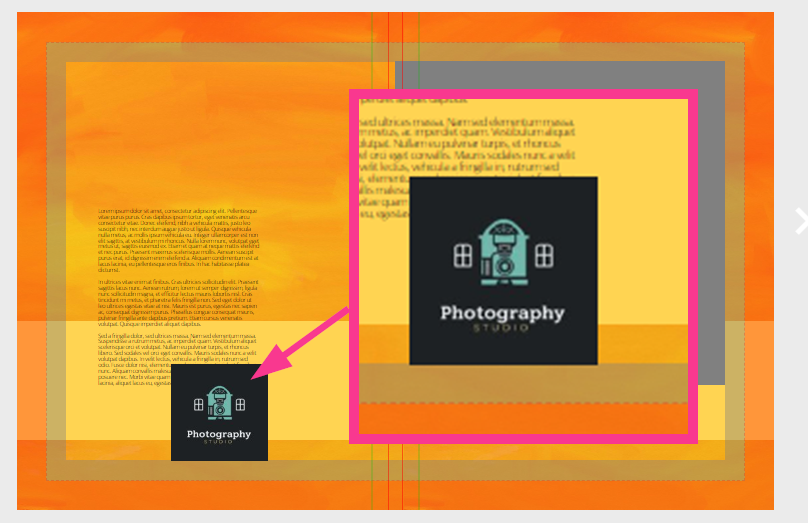
While the logo placement and size is handled in your Book Projects under the cover settings, the logo is uploaded under your Customization options.
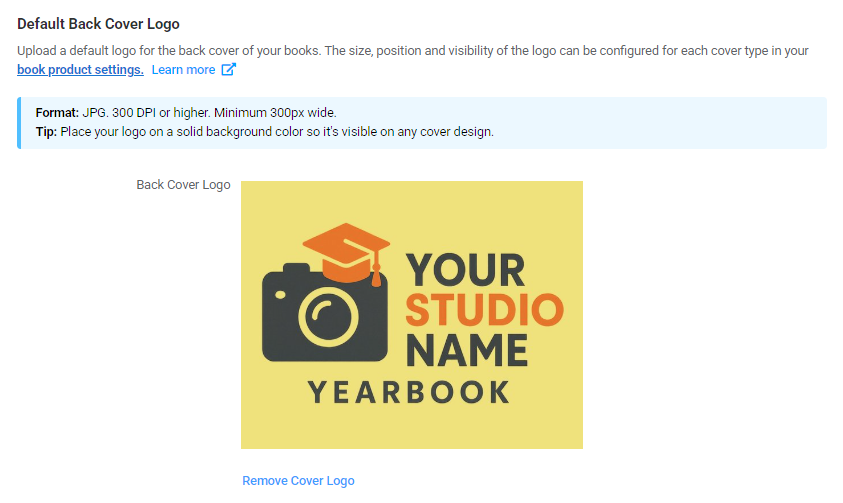 Ensure your logo is 300 dpi; jpg or png, and ensure the logo is set on a solid background. PNG files may have some transparency (eg. rounded corners) but a background works best to ensure that the logo will be clear and visible regardless of the colors/textures used on the cover design.
Back cover logo placement workflow
1. Upload your logo under Customization > Logos > Default Back Cover Logo
2. Go to Manage Book Project. Either:
- create a new book product that includes on or more covers (details here)
or - edit an unused book product, ie. not assigned to a school's project (details here)
or - duplicate an existing book product (details here)
3. Select a cover to modify. Under Logo Position, choose the default logo (the logo uploaded under Customization) or a different logo, the logo position and size. Update your selection.
4. Apply the book product a school's book. Their back cover will now display your logo. They cannot delete it, move it, or cover it up. The logo will be rendered on the cover and printed on all their books.
Was this article helpful?
That’s Great!
Thank you for your feedback
Sorry! We couldn't be helpful
Thank you for your feedback
Feedback sent
We appreciate your effort and will try to fix the article